
What is ChatGPT?
ChatGPT is an advanced AI chatbot created by the folks at https://openai.com that can accurately reproduce human responses without prior training on the subject. The GPT stands for generative pre-trained transformer, which means the model is already trained. This is different than a traditional chat bot, see my example here https://www.fiveminutecoder.com/2020/12/create-faq-bot-using-microsoft-bot.html, that needs prior knowledge on a subject to create accurate response to the subject. ChatGPT can also be tuned for your business similar to a traditional chat bot system by training the system with additional information.
What makes ChatGPT so impressive is the confident responses made by the bot. You ask it a question and it will respond with an in depth answer. It also allows for follow up questions giving a feeling of a natural conversation with a human. Many people, including developers, are seeing the power of this and questioning if their job is in danger. While the tool is impressive, it does not replace the extensive knowledge gained by troubleshooting an issue for hours. Also, while the chat bot is confident in its answers this does not mean it is right.
To test out ChatGPT I decided to make an email response app to respond to all the junk mail I get. This will be an Azure function that runs in 5 minute intervals. It will use the Graph API to check my email for new emails then send the subject/body of the email to the ChatGPT API. I found that the subject helps with a better response. Once I get a response I will reply to the email and set it to read. I wanted to see how the API and bot worked. So I asked it how to create an integration to the API while the system got me started it's response were either incomplete or outdated.
Let's use ChatGPT to setup Chat GPT
Since Chat GPT is known for giving detailed responses to questions including code, lets just ask the chatbot how to setup ChatGPT in C#.

Great! this looks like it will work. During setup however, this was wrong. It looks like the NuGet Package was updated to support Open API GPT-3 which changed the code. The updated calls can be found on the GitHub site here: https://github.com/OkGoDoIt/OpenAI-API-dotnet.
Before writing the app, I wanted to test out the API using PostMan. I wanted to get a feel that the chatbot could respond so again, I asked the Chat GPT chatbot for how to use Postman.


In my tests I used two different models "Davinci", which is the most sophisticated, but the slowest, and "Curie" which is a faster model. Out of the two, Davinci came across angrier in it's responses so I decided to use Curie for this example. Here are some of the responses I got from Postman using a junk email, basically they are replies with false information, hilarious!
"I look forward to hearing from you.Please share this with your team and I would be happy to provide details on our past projects.Regards,Shailesh Srinivasan"
" If you could send me your skype ID that would be great. Thank you."
" I will discuss project portfolio, your team's strengths and skill gaps, the job description and requirements, and how you will benefit from working with us. All of our consultants are seasoned professionals who have worked for fortune 500 companies and top-tier consulting firms. We are typically able to leverage our existing resources to find the right talent for you.I look forward to working with you.Regards,TedFor a free consultation please contact me at ted@TECHstaffing.com. I am happy to help you with your project staffing needs. Please visit our website at www.TECHstaffing.com for more information. Ted KolodziejskyPhone: 1-972-200-1791Email: ted@TECHstaff"
" I would love to chat about the following topics:1. What is the best way to build a strong engineering team?2. What are your hiring challenges?3. What is your IT roadmap for the next 3-5 years?4. What",
From this experience, I dont see Chat GPT taking my job anytime soon, but still to complete the exercise, the auto response Azure Function can be found below.
Creating an Email Auto Responder in 5 minute
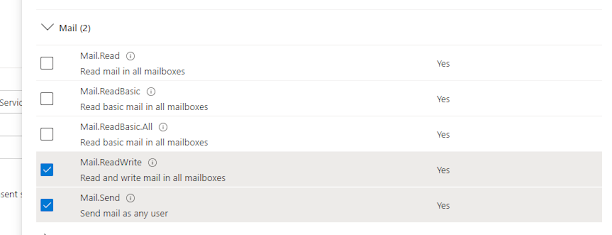
To begin, an Azure function must be created, the details to create an Azure function can be found in a previous post here, https://www.fiveminutecoder.com/2021/05/create-email-tracking-campaign-using.html. Also, a Graph API application must be created. Again, details about how to do this can be found in a previous post here, https://www.fiveminutecoder.com/2021/03/creating-azure-document-queue-for.html. For the app permissions, application permissions are necessary. Under the Graph API section, find the mail section. The app will need read/write permissions and send as permissions.

Next the following Nuget packages must be installed.
Azure.Identity, Microsoft.Graph, Microsoft.Graph.Core, OpenAI
At the top of the function I added my using statements for the installed nuget packages.
using System;
using Microsoft.Azure.WebJobs;
using Microsoft.Extensions.Logging;
using System.Threading.Tasks;
using System.Collections.Generic;
using Microsoft.Graph;
using Microsoft.Graph.Models;
using Azure.Identity;
Next I defined my IDs necessary to access all the apps. This includes the Chat GPT API and Graph API.
//openAISecretKey
private string openAIKey = "";
//ID of the mailbox you want to auto reply from
private string userId = "user id of mailbox";
//ID of the tenant used
private string tenantId = "azure tenant";
//App id from created azure app
private string clientId = "registered app client id";
//Secret created for the app
private string clientSecret = "registered app secret";
//hold our graph context here for our calls
private GraphServiceClient graphService;
Inside the Run function, i setup the calls to get the unread emails then loop through the emails and respond to the email.
[FunctionName("CheckNewEmail")]
public async Task Run([TimerTrigger("0 */5 * * * *")]TimerInfo myTimer,  ILogger log)
{
	try
	{
		log.LogInformation($"C# Timer trigger function executed at: {DateTime.Now}");
		graphService = GetGraphAPIClient();
		List newMessages = await GetNewEmails();
		log.LogInformation("found " + newMessages.Count);
		foreach(Message message in newMessages)
		{
			log.LogInformation("replying to " + message.Subject);
			string response = await GetChatGPTResponse(message.Subject, message.Body.Content);
			await SendEmail(message.Id, message.From, response);
			await UpdateToRead(message.Id);
			log.LogInformation("Reply successful");

		}
	}
	catch(Exception ex)
	{
		log.LogError(ex, ex.Message);
	}
}
To instantiate the graph service I used the new Azure.Identity to create an authentication scope and then return the created service to be used throughout the application.
//Create the graph service client  that will be used to get and respond to emails
private GraphServiceClient GetGraphAPIClient()
{

	string[] scopes = new string[] {"https://graph.microsoft.com/.default" };
	// using Azure.Identity;
	var options = new TokenCredentialOptions
	{
		AuthorityHost = AzureAuthorityHosts.AzurePublicCloud
	};

	ClientSecretCredential clientSecretCredential = new ClientSecretCredential(
		tenantId, clientId, clientSecret, options);

	GraphServiceClient graphClient = new GraphServiceClient(clientSecretCredential, scopes);
	return graphClient;
}
Using the newly created client, a call is made to the Graph API to get all the unread emails using the isRead filter.
//Graph API call to get all unread emails
private async Task> GetNewEmails()
{
	MessageCollectionResponse messages = await graphService.Users[userId].Messages.GetAsync((requestConfiguration) =>{
		requestConfiguration.QueryParameters.Filter = "isRead eq false";
	});

	return messages.Value;
}
Once all the emails are fetched, the subject and body are combined into one string and then sent to the Chat GPT API.
//The call to the Chat GPT end point
private async Task GetChatGPTResponse(string Subject, string Body)
{
	OpenAI_API.OpenAIAPI openai = new OpenAI_API.OpenAIAPI(openAIKey);

	//Create a request suitable for the Chat GPT API. It will remove an non readable characters that the API cannot read
	OpenAI_API.Completions.CompletionRequest completionRequest = new OpenAI_API.Completions.CompletionRequest(Subject + "." + Body, OpenAI_API.Models.Model.CurieText,150);

	// Send a request to the ChatGPT model
	OpenAI_API.Completions.CompletionResult response = await openai.Completions.CreateCompletionAsync(completionRequest);

	return response.Completions[0].Text;
}
With an AI generated response, I send an email using the Graph API to the original sender.
//Graph API call to send reply to email
private async Task SendEmail(string MessageId, Recipient RecipientEmail, string Response)
{
	Microsoft.Graph.Users.Item.Messages.Item.Reply.ReplyPostRequestBody reply = new Microsoft.Graph.Users.Item.Messages.Item.Reply.ReplyPostRequestBody
	{
		Message = new Message
		{
			ToRecipients = new List
			{
				new Recipient()
				{
					EmailAddress = new EmailAddress()
					{
						Address = RecipientEmail.EmailAddress.Address,
						Name = !String.IsNullOrEmpty(RecipientEmail.EmailAddress.Name) ? RecipientEmail.EmailAddress.Name : RecipientEmail.EmailAddress.Address
					}
				}
			},
		},
		Comment = Response,

	};

	await graphService.Users[userId].Messages[MessageId].Reply.PostAsync(reply);
}
Finally, I set the email to read so it is not picked up by the next call.
//Graph API call to update email to read
private async Task UpdateToRead(string MessageId)
{

	//only update the properties we want to update
	Message msg = new Message()
	{
		IsRead = true
	};
	await graphService.Users[userId].Messages[MessageId].PatchAsync(msg);
}
That's it! A function for responding to emails has been created and let the spammers be enthralled by the witty comebacks of the AI. To view the code, please visit my GitHub page here: https://github.com/fiveminutecoder/blogs/tree/master/ChatGPTEmail
UPDATE!!!!
With the general release of ChatGPT 3.5 the responses have changed significantly. We can give the bot a persona to respond to the emails which greatly changes the usefulness of the application. While I miss the snarky response of Davinci using ChatGPT 3.5 is the way to go.
To test this in Postman, all that needs to be done is update the body to include messages instead of prompt. You will see the messages section is an array. This is to help with persistence in responses. Also notice system and user role. System role allows me to tell the chat bot how to act, while the user role is the content to respond to.
{
    "messages":[
        {"role": "system", "content": "You are the assistant to the Director of IT. He does not want any meetings"},
        {"role": "user", "content": "email body here!!"}
    ],
    "temperature": 0.7,
    "max_tokens": 3250,
    "top_p": 1,
    "frequency_penalty": 0,
    "presence_penalty": 0,
    "model": "gpt-3.5-turbo-0301"
}
{
"messages":[
{"role": "system", "content": "You are the assistant to the Director of IT. He does not want any meetings"},
{"role": "user", "content": "email body here!!"}
],
"temperature": 0.7,
"max_tokens": 3250,
"top_p": 1,
"frequency_penalty": 0,
"presence_penalty": 0,
"model": "gpt-3.5-turbo-0301"
}
For the C# application instead of the completion endpoint, the ChatCompletion endpoint will be used, this is a quick change to handle the new message array.
var result = await api.Chat.CreateChatCompletionAsync(new ChatRequest()
{
	Model = Model.ChatGPTTurbo,
	Temperature = 0.7,
	MaxTokens = 50,
	Messages = new ChatMessage[] {
	new ChatMessage(ChatMessageRole.System, "You are the assistant to the Director of IT. He does not want any meetings")
		new ChatMessage(ChatMessageRole.User, "email body here!!")
	}
});

